Ticketing Admin: secure patch preparation and upload
Secure Patch Center
The captured Secure Patches screen contains the fields Product, Version, Release, Patch Name, Patch Type, Status, Checksum, Description, Patch File, the Upload Secure Patch button and an Uploaded Patches area. This establishes a patch-upload form, not proof of successful installation or end-to-end authorization checks.
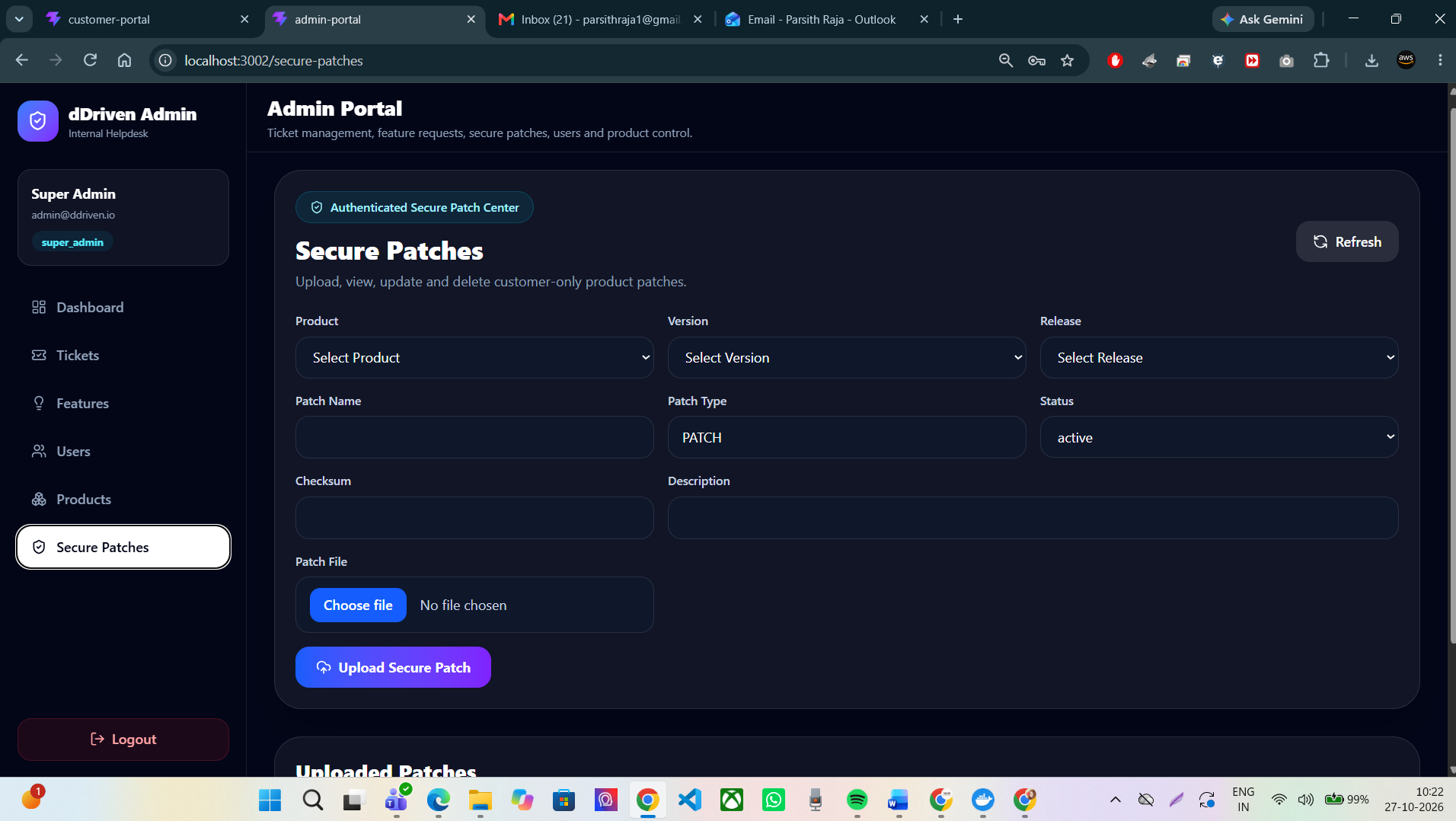
Figure: Ticketing Admin Secure Patches upload form. Screenshot captured 27 October 2026; internal use only.
Prepare a patch before upload
- Obtain engineering approval for the fix and a documented support/customer distribution decision.
- Identify the precise product, version and release the artifact supports.
- Produce a reviewed artifact (for example ZIP) with accompanying release notes, prerequisites and rollback instructions.
- Scan it for malware, secrets and unintended customer data.
- Calculate a cryptographic checksum using the company's approved algorithm; verify which checksum format the application expects.
- Arrange a second-person release/patch approval if required by team policy.
Upload and verify
- Open Secure Patches with an authorized ticketing account.
- Select the correct product, version and release.
- Enter Patch Name, Patch Type, Status, Checksum and Description consistent with approved release notes.
- Choose the exact patch file and select Upload Secure Patch.
- Confirm the item appears in Uploaded Patches and that its metadata is correct.
- Validate download only as an entitled customer, using a test account and approved test file; also verify unauthorized accounts cannot fetch it.
- Connect the patch to customer communications only when release validation is complete.
What customer support should communicate
Provide a human-readable summary of what is fixed, product compatibility, backup prerequisites, install and rollback steps, expected downtime, and where to request help. A ZIP attachment alone is not sufficient release guidance.
Verification boundaries
The documentation shows a patch.zip attachment in a TKT-1005 customer conversation and a Secure Patches button on the customer dashboard. It does not confirm whether those are the same storage path or whether every access policy/checksum is enforced. Test them separately before claiming secure delivery.