Customer Portal: sign-in, dashboard and tickets
Who this is for
This page is intended for support colleagues assisting customers. The Customer Portal is separate from GitLab and cannot be used to administer source code, employees, customers or organization-wide product configuration.
Sign in
- Open the approved Customer Portal address. The demo shows
localhost:3001/loginand is not the production customer URL. - Use the customer account provided through authorized onboarding.
- Sign in and confirm the dashboard and allowed products are correct.
- If access is denied, contact the support account owner instead of sharing credentials.
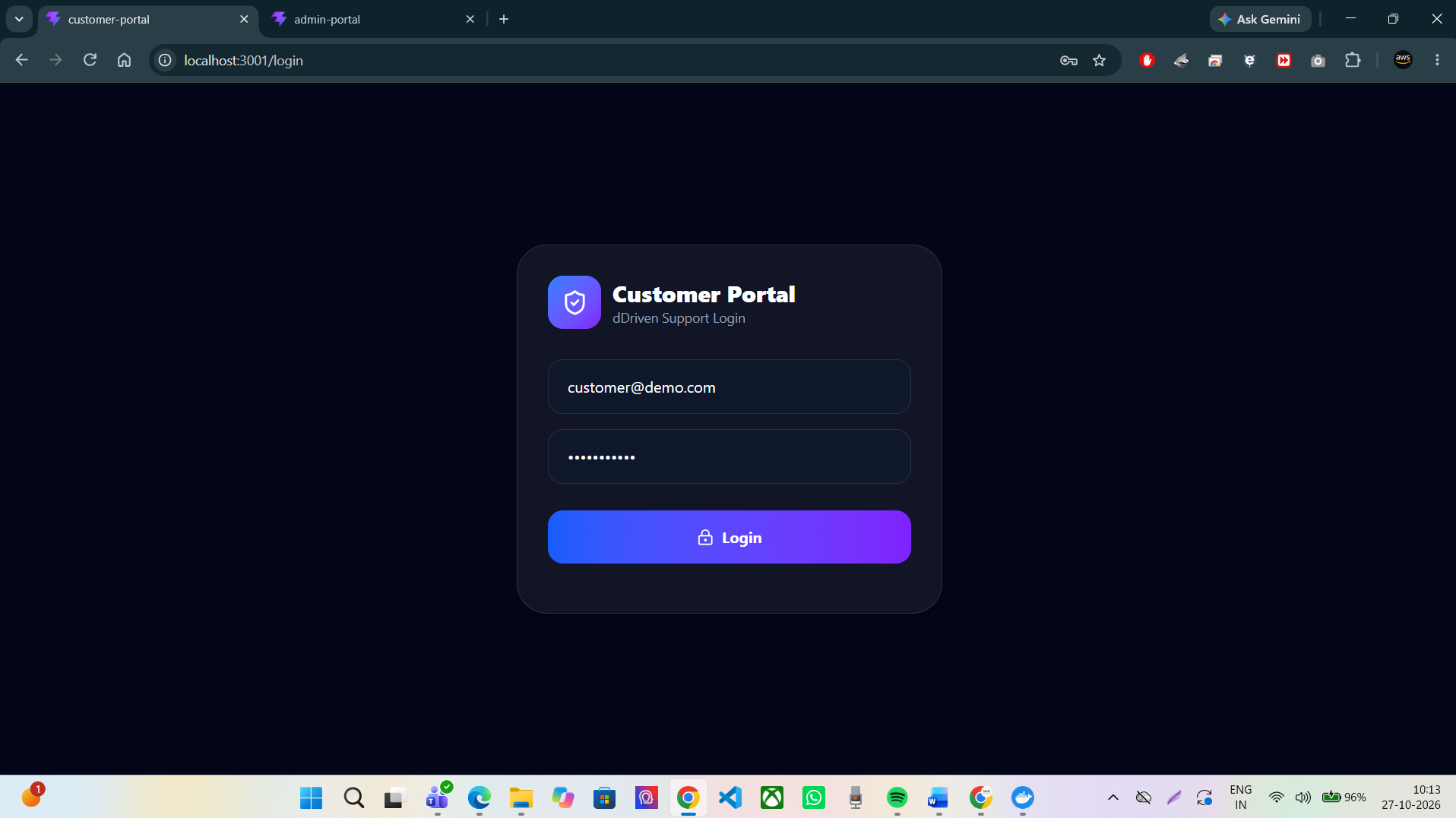
Figure: Customer Portal sign-in screen. Screenshot captured 27 October 2026; internal use only.
Read the dashboard
The full-page capture shows dashboard actions including View My Tickets, New Ticket, Ask New Feature and Secure Patches, with ticket totals and recent tickets. Availability may depend on permissions and application version.
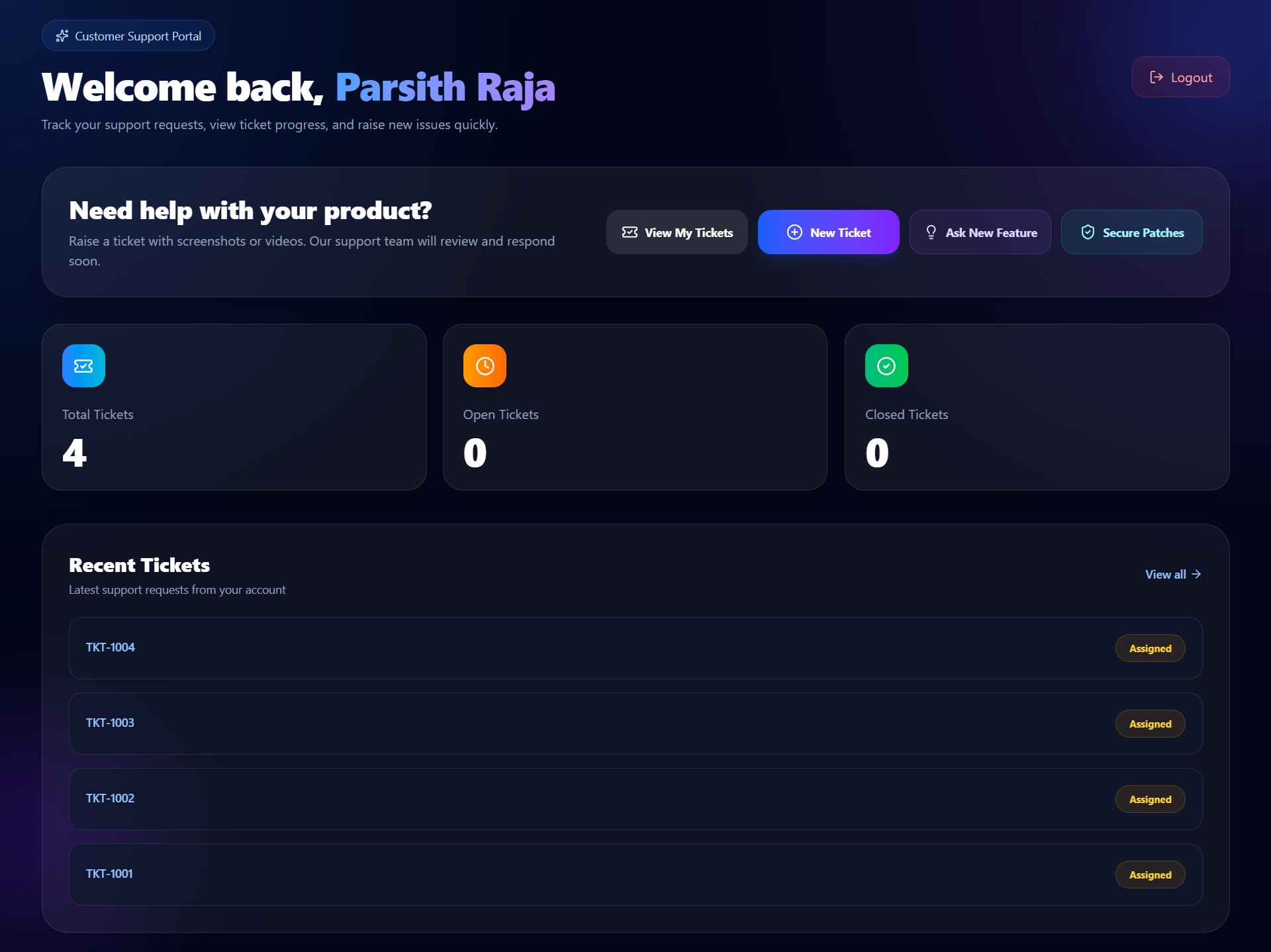
Figure: Customer dashboard showing quick actions, ticket totals and recent tickets. Screenshot captured 27 October 2026; internal use only.
Find an existing ticket
- Select View My Tickets.
- Review the table columns Ticket No, Title, Product, Priority, Status and Created.
- Select your ticket number to view its history and replies.
- Quote the ticket number whenever contacting the support team.
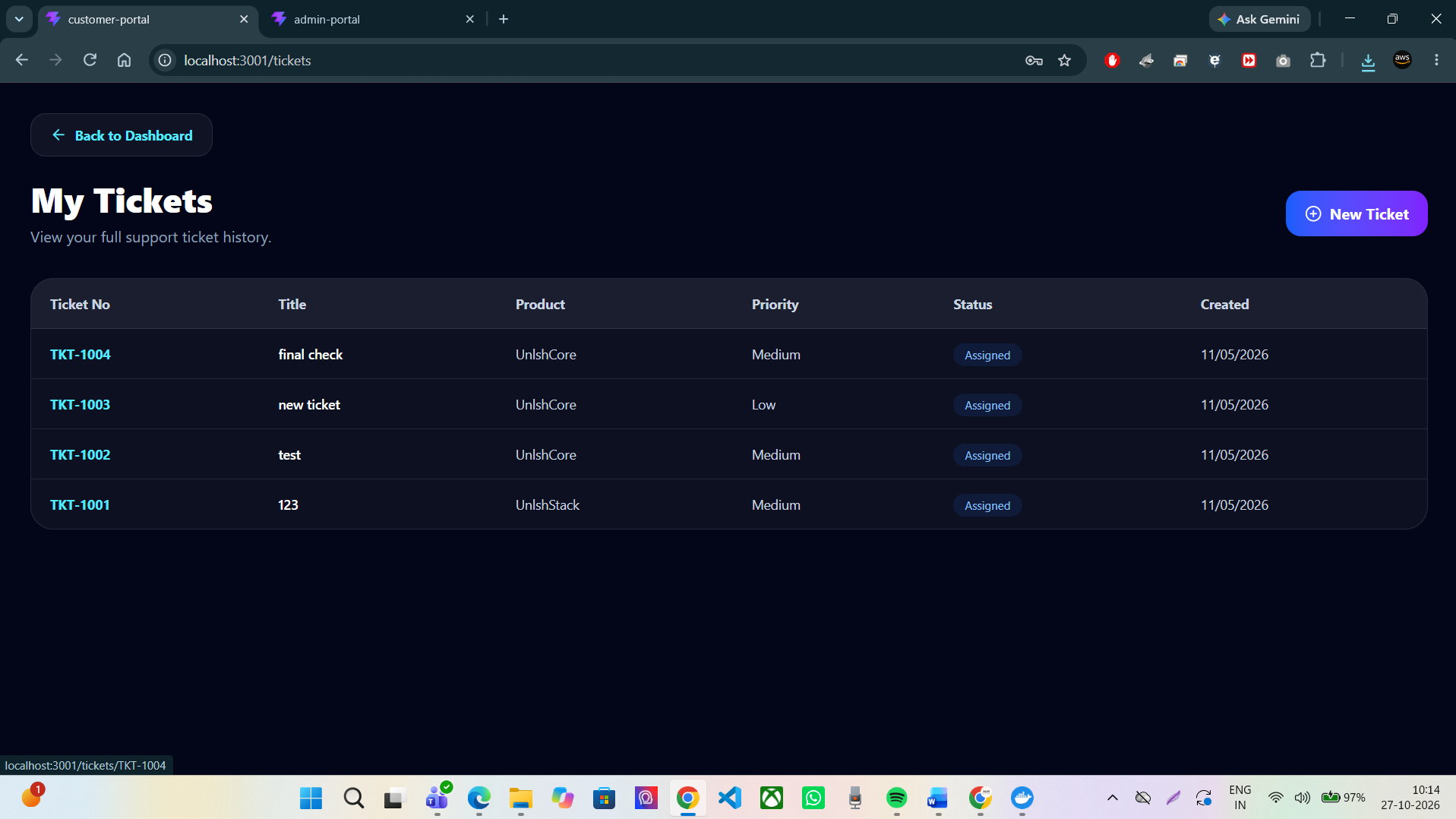
Figure: Customer My Tickets list with example tickets TKT-1001 through TKT-1004. Screenshot captured 27 October 2026; internal use only.
Privacy: Each customer should only see their own entitled records. This is a required test for the platform owner; the screenshot alone does not prove row-level access controls.