INTERNAL / DRAFTCustomer·Engineering & support
Customer Portal: attachments, patch validation and reopen
Attachments and patch files
The closed-ticket screenshot shows ticket TKT-1005, a patch.zip attachment, a closed state and a visible Reopen Ticket control.
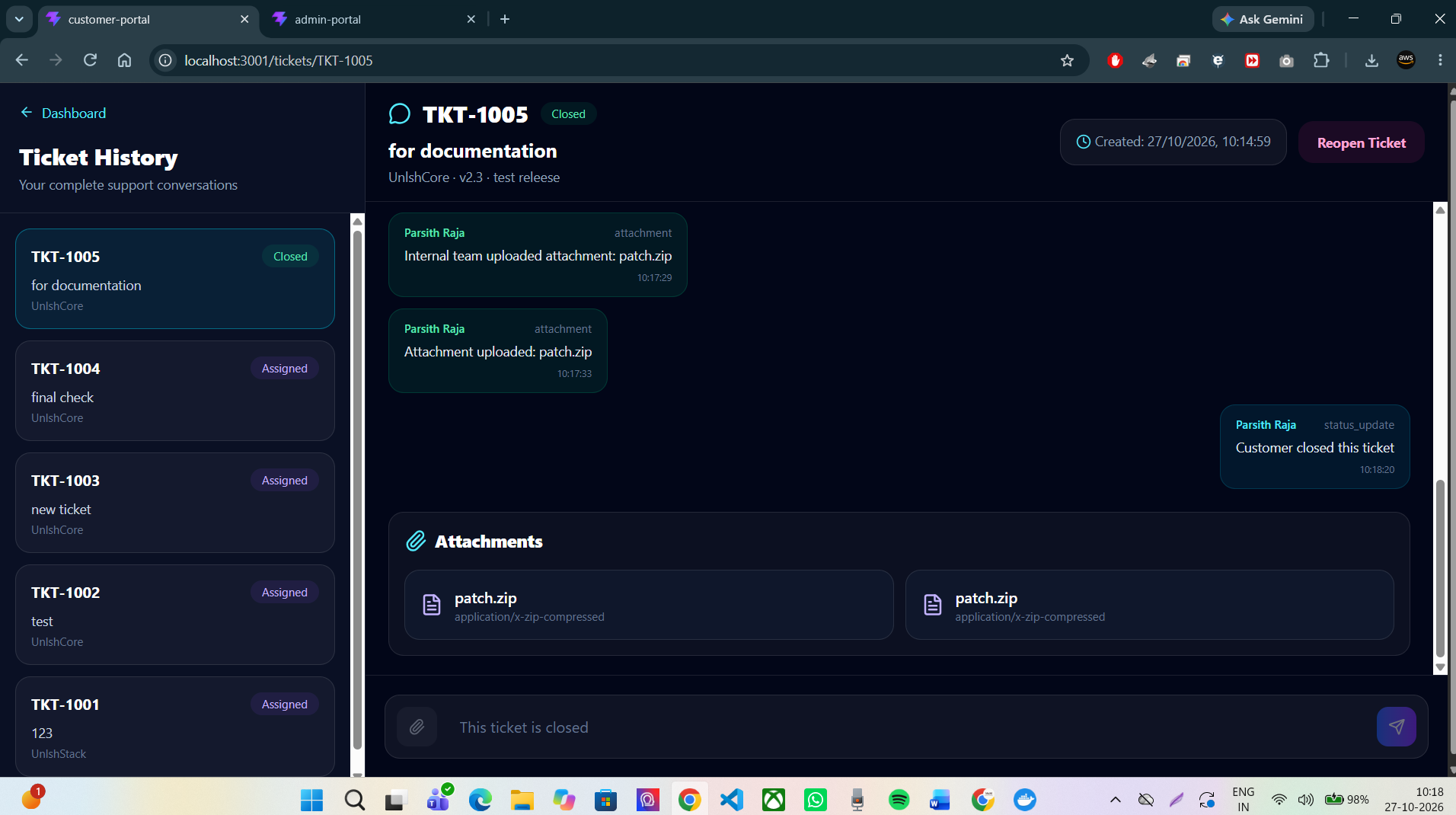
Figure: Closed TKT-1005 with patch.zip attachment and Reopen Ticket action. Screenshot captured 27 October 2026; internal use only.
Safe download checklist
- Confirm the file came through the authorized support workflow and matches the expected ticket/product/version.
- Verify release notes, expected checksum, backup requirements and installation instructions with support.
- Have your environment owner scan and approve the patch before execution.
- Back up or snapshot affected systems as required by the release procedure.
- Apply only in the approved environment, then validate the original issue and any regression checks.
- Report the validation outcome and release reference in the ticket.
Close an issue
Close the ticket only when the symptom is resolved and acceptance testing is complete. The documentation demonstrates a customer-closure email notification but does not establish who can close every ticket or whether support staff may force-close it.
Reopen an issue
- Open the closed ticket in the Customer Portal.
- Select Reopen Ticket when available.
- Explain what persists or recurred, when it happened and whether the prior patch was applied.
- Add new evidence and allow support to re-triage.
Do not assume reopening or closure in the customer portal automatically changes the linked GitLab issue. The integration owner must validate this separately.