GitLab instance administration and user security
Instance dashboard
The captured GitLab Admin overview reports 3 projects, 6 users and 2 groups at the time of capture. These figures are historical screenshot values, not current instance inventory.
- Sign in with an authorized named GitLab administrator account.
- Open Admin and navigate to instance overview.
- Review projects, users, groups and any available health indicators.
- Visit Overview → Projects / Users / Groups for administration.
- Follow the internal process for authentication settings, backups, upgrades, group permissions and audit review.
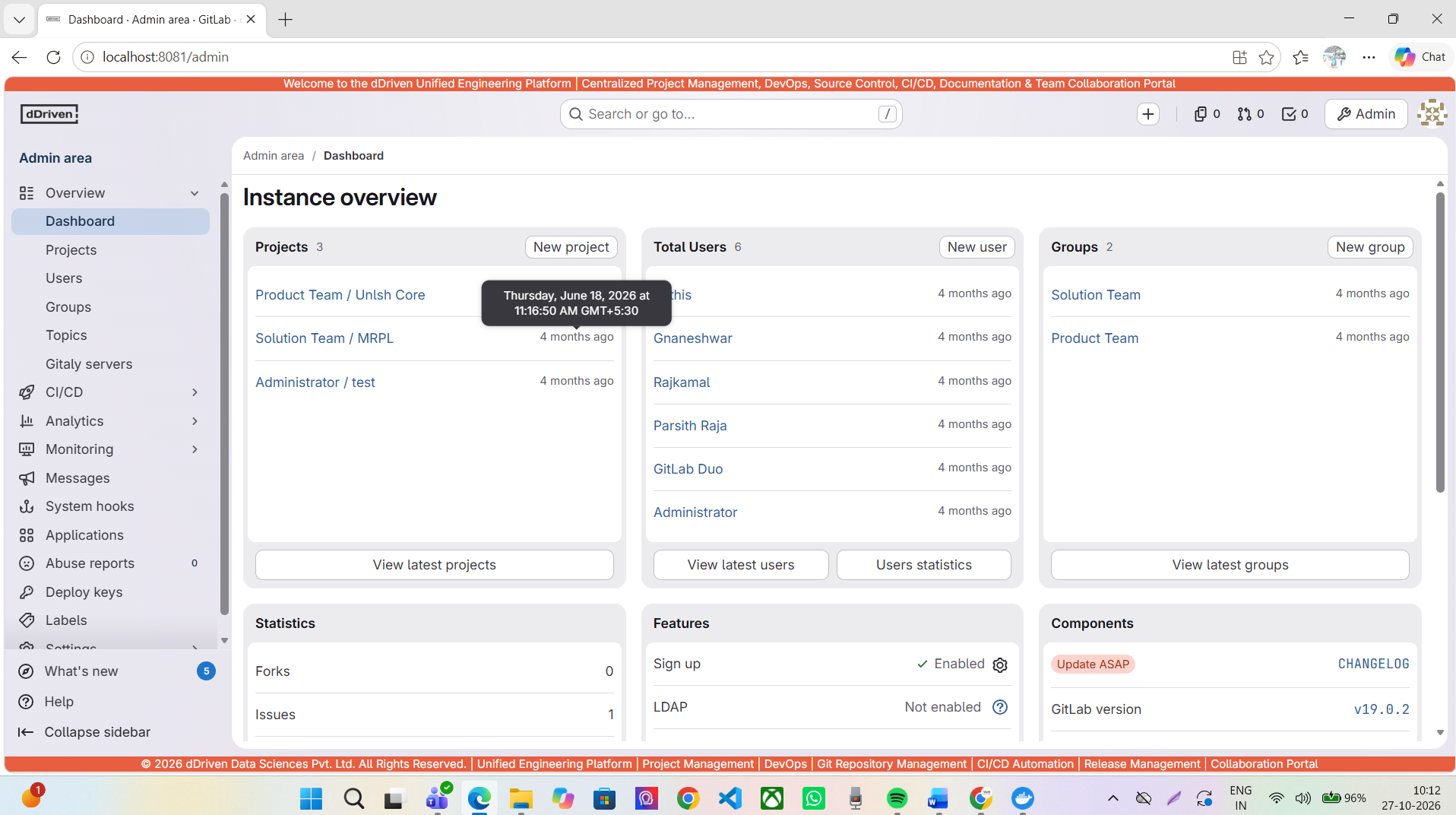
Figure: GitLab instance overview for projects, users and groups. Screenshot captured 27 October 2026; internal use only.
Provision and maintain GitLab users
- Open Admin → Overview → Users.
- Use New user only after verified internal onboarding approval.
- Provide the correct employee identity and secure initial credential flow; do not put temporary passwords in documentation.
- Confirm the account is active and receives only the necessary group/project memberships.
- Require or strongly encourage two-factor authentication based on approved organization policy.
- Review account status and revoke permissions promptly at offboarding.
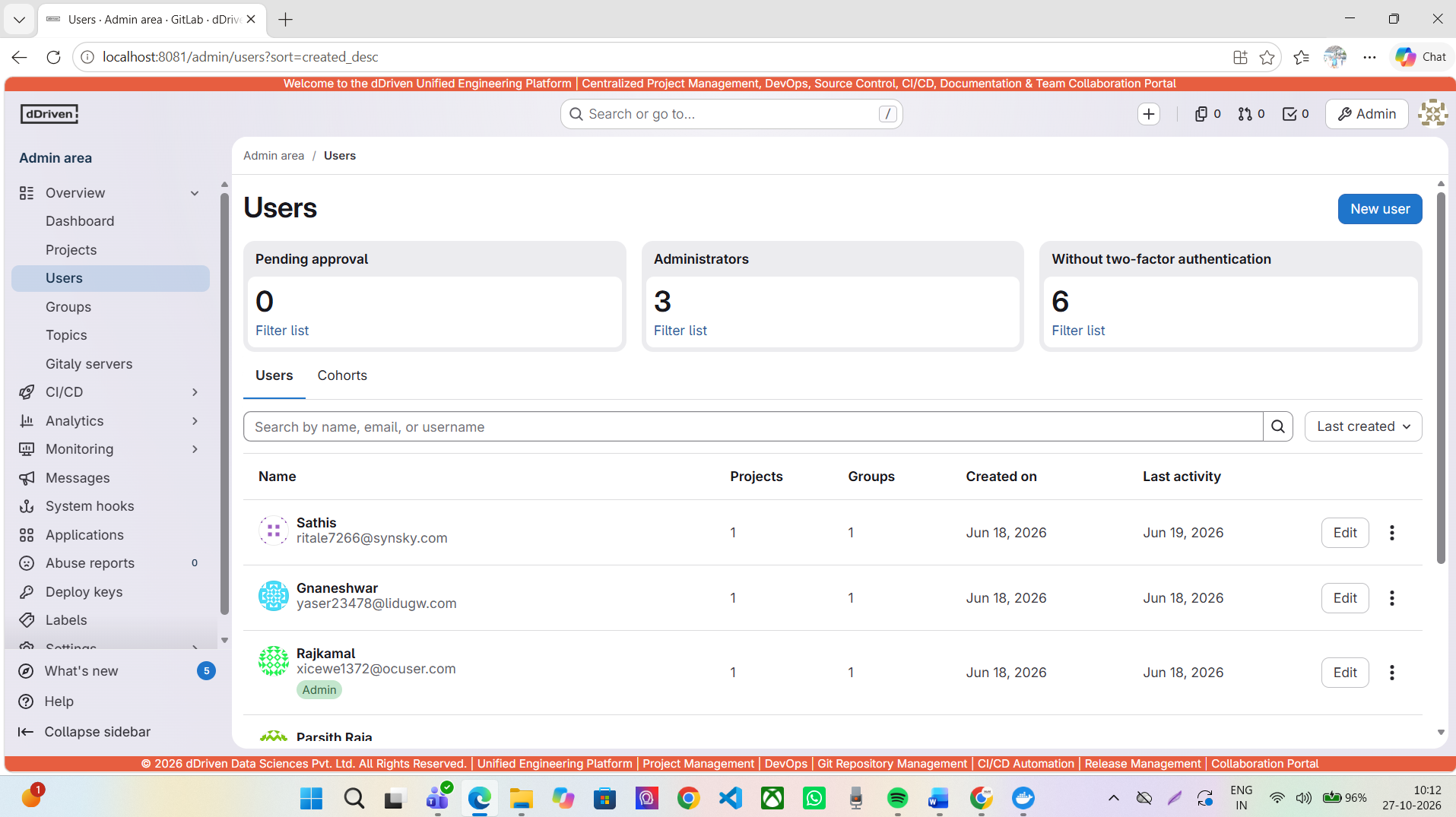
Figure: GitLab Admin Users overview, including six users without 2FA in the captured state. Screenshot captured 27 October 2026; internal use only.
Security observation from the platform walkthrough
The screenshot indicated six accounts without 2FA on 27 October 2026. Validate the current count before reporting it as an ongoing security finding. Test 2FA enrollment and account recovery without sharing recovery codes.
Administrator handover
Record the supported GitLab version, approved instance URL, backup and restore evidence, protected branch rules, runner/pipeline status, email settings and responsible owner in an access-controlled operations register. None of those deployment-specific settings are fully established by the screenshots.