INTERNAL / DRAFTTicketing Admin·Engineering & support
Ticketing Admin: ticket list, triage and assignment
What this screen shows
The supplemental screenshot shows the dDriven Admin ticket list with a search box, filter controls and columns for Ticket, Title, Customer, Product, Priority, Status, Assigned and Action. The example includes tickets TKT-1001 through TKT-1005.
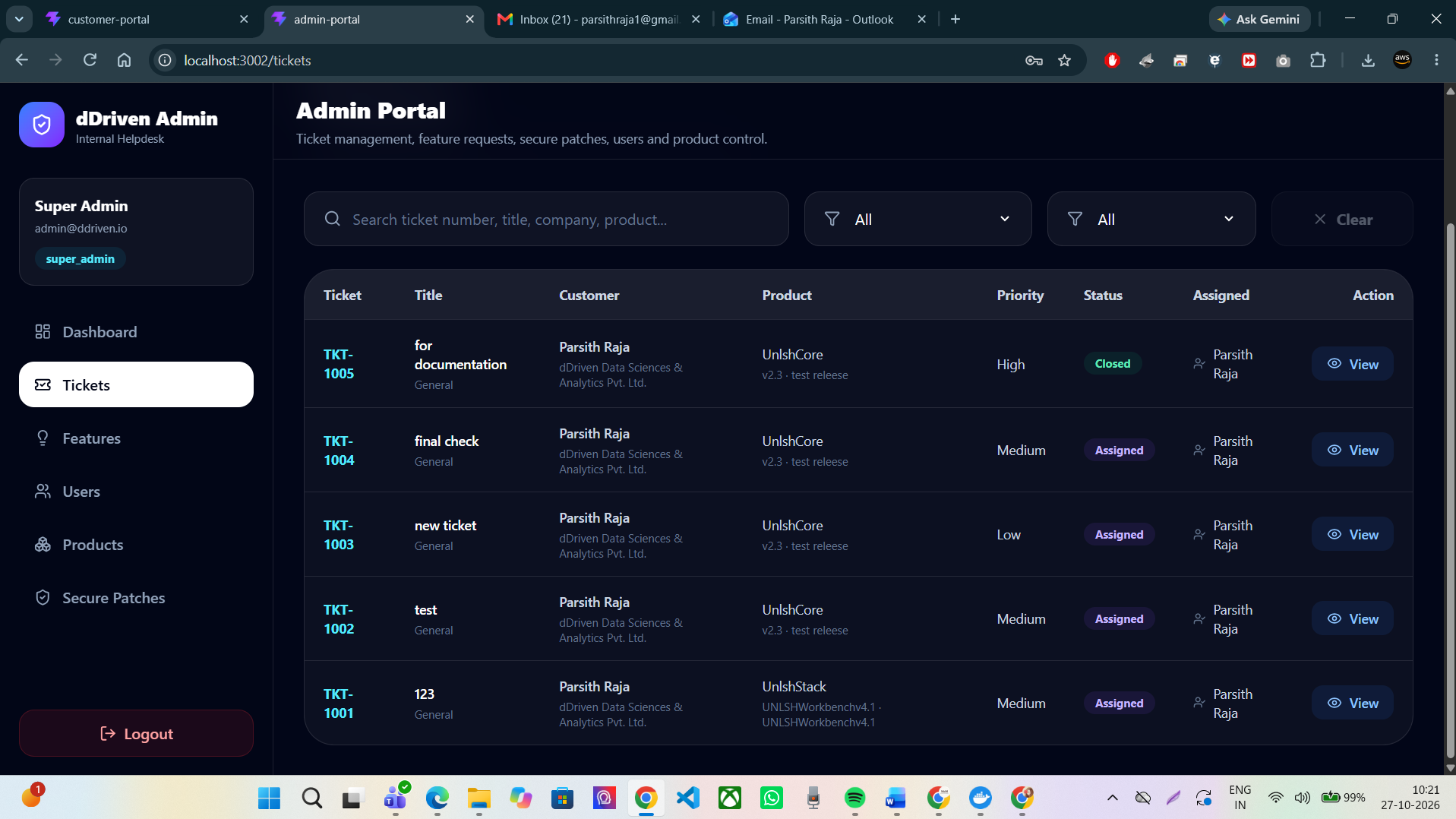
Figure: Ticketing Admin Portal ticket list with priority, assignment and status. Screenshot captured 27 October 2026; internal use only.
Review a new or active ticket
- Open the approved Ticketing Admin Portal URL and sign in using your assigned internal account.
- Select Tickets from the side navigation.
- Use the search field to find the ticket by number, title, customer, company or product; optional dropdowns narrow the list.
- Select View beside the intended ticket and verify the customer's permitted product, priority and problem description.
- Confirm ticket-specific product version and release, and ask for missing reproduction evidence through the approved customer conversation.
- Check for existing assignment or linked GitLab work item to avoid duplicate engineering effort.
Assign and verify handoff
- Choose an employee with the technical ownership and access needed for the product. The provided ticket-list screenshot does not show the exact assignment form or save control; confirm the current ticket detail UI locally.
- Save the assignment in the ticketing application.
- Confirm assignment status and selected employee in the ticket detail/list.
- Open the mapped GitLab project and search for an item prefixed with
[TKT-####]. - If the GitLab work item is missing, investigate product mapping, employee mapping, PAT permissions and integration logs rather than telling the customer the engineering handoff succeeded.
- Ensure the customer receives a human-readable update through the ticket portal, not only through an internal GitLab comment.
Recommended triage data
| Field | Why support needs it |
|---|---|
| Ticket number | Stable link between customer portal and GitLab |
| Company/customer | Entitlement and correct scope; share minimally |
| Product/version/release | Select correct engineering project and reproduce accurately |
| Priority and impact | Route and sequence support effort |
| Reproduction steps | Accelerate investigation |
| Attachments/logs | Confirm issue, subject to safe handling |
| Assigned engineer | Makes ownership explicit |
| Linked GitLab item | Confirms integration handoff |
State management
The example uses Assigned and Closed labels. Do not invent transitions or automatic rules not shown in the current portal. Ask the application owner to confirm complete state definitions and whether reassignment, reopen and closure generate fresh work items or notifications.