INTERNAL / DRAFTGitLab·Engineering & support
GitLab project membership and least privilege
Review project memberships
- Open the project in GitLab.
- Select Manage → Members as allowed by your role.
- Review members, sources of membership (direct or inherited), assigned roles and expiration dates.
- Verify each person's access is linked to their work responsibility.
- Remove or reduce stale access through the approved change-control process.
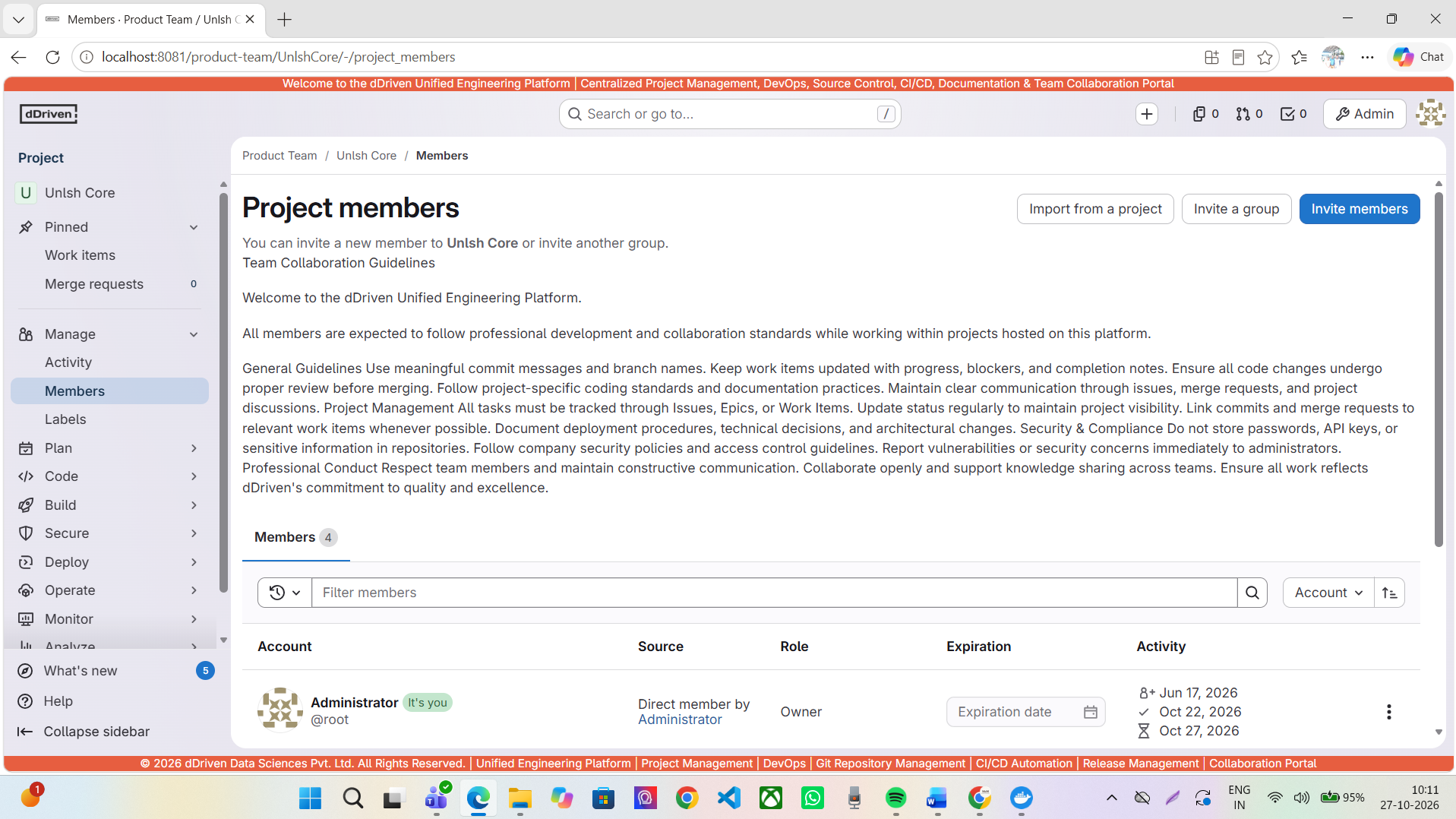
Figure: GitLab project Members screen with invite controls and membership roles. Screenshot captured 27 October 2026; internal use only.
Add an authorized colleague
- Obtain approval from the project owner.
- Choose Invite members.
- Select a named account and the least privileged role that completes the task.
- Prefer Developer for ordinary contribution where suitable; limit Maintainer and Owner to responsible leads.
- Apply an expiration date where company policy requires it.
- Ask the colleague to confirm intended access, then test that unrelated private projects remain hidden.
Access to an integration target
A ticket may name an engineer who exists in the Ticketing Admin Portal but has no matching GitLab identity or lacks permission in the product's mapped project. That can prevent assignment or issue creation. Validate both identities and project membership during integration troubleshooting.