INTERNAL / DRAFTGitLab·Engineering & support
GitLab sign-in and personal dashboard
Sign in
- Open the approved organization GitLab URL in a managed browser. The example uses
localhost:8081only on its demo machine. - On the dDriven Unified Engineering Platform sign-in screen, enter your individual username/email and password.
- Select Sign in and confirm the dashboard shows the correct personal identity.
- If authentication fails, check the URL and account status and use the approved password/reset process. Do not request another person's password.
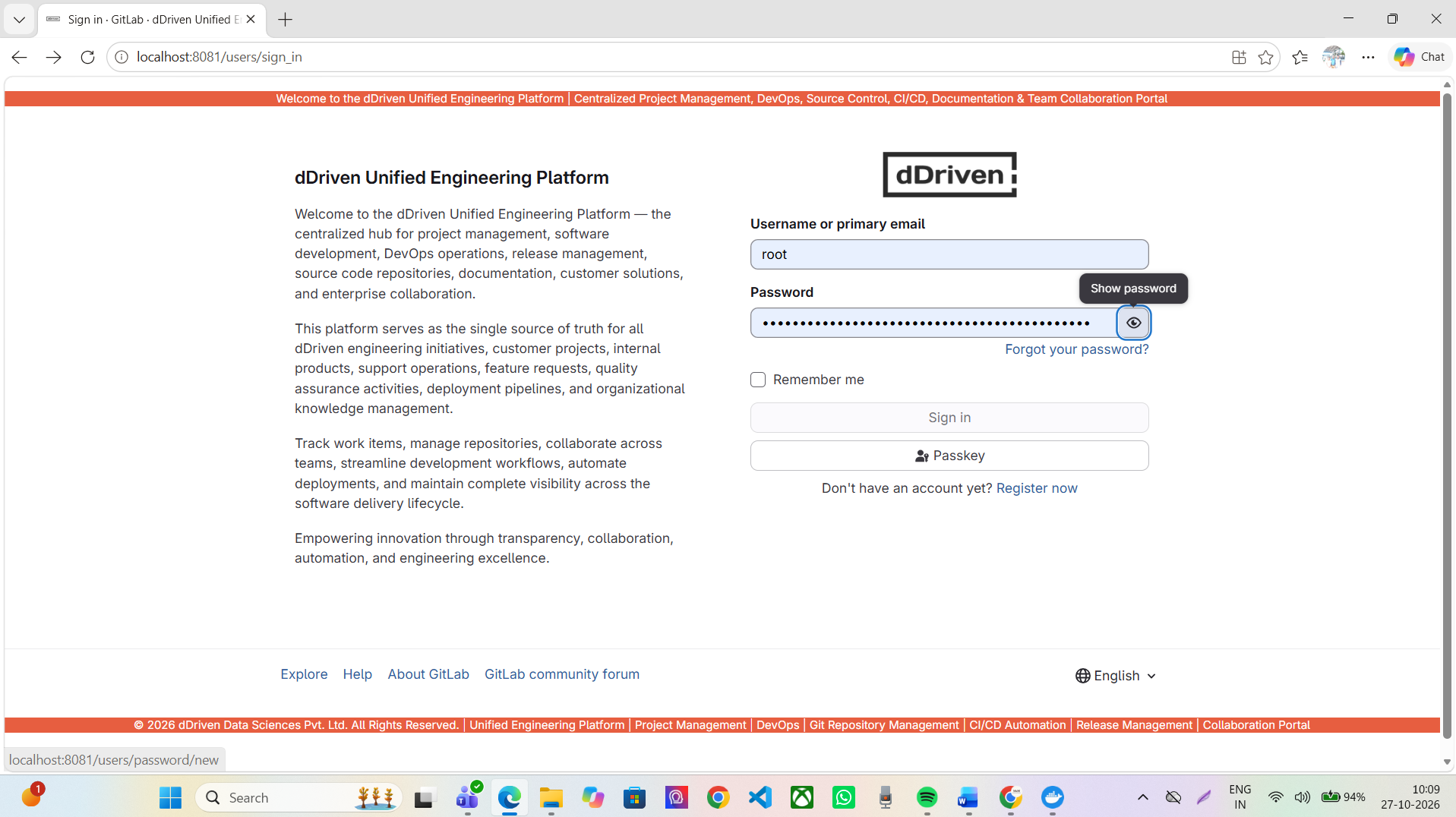
Figure: Branded GitLab sign-in screen. Screenshot captured 27 October 2026; internal use only.
Use the Home dashboard
The Home view exposes links such as Projects, Groups, Work items, Merge requests and recent activity. It is useful for finding assigned tasks and returning to ongoing work.
- Open Home after sign-in and review assigned work items and merge requests.
- Use Work items to locate relevant issues; search by ticket prefix where available.
- Use Projects or Groups for authorized codebases; private projects remain restricted.
- Save the URL of an issue or project in internal channels rather than copying sensitive issue details into external tools.
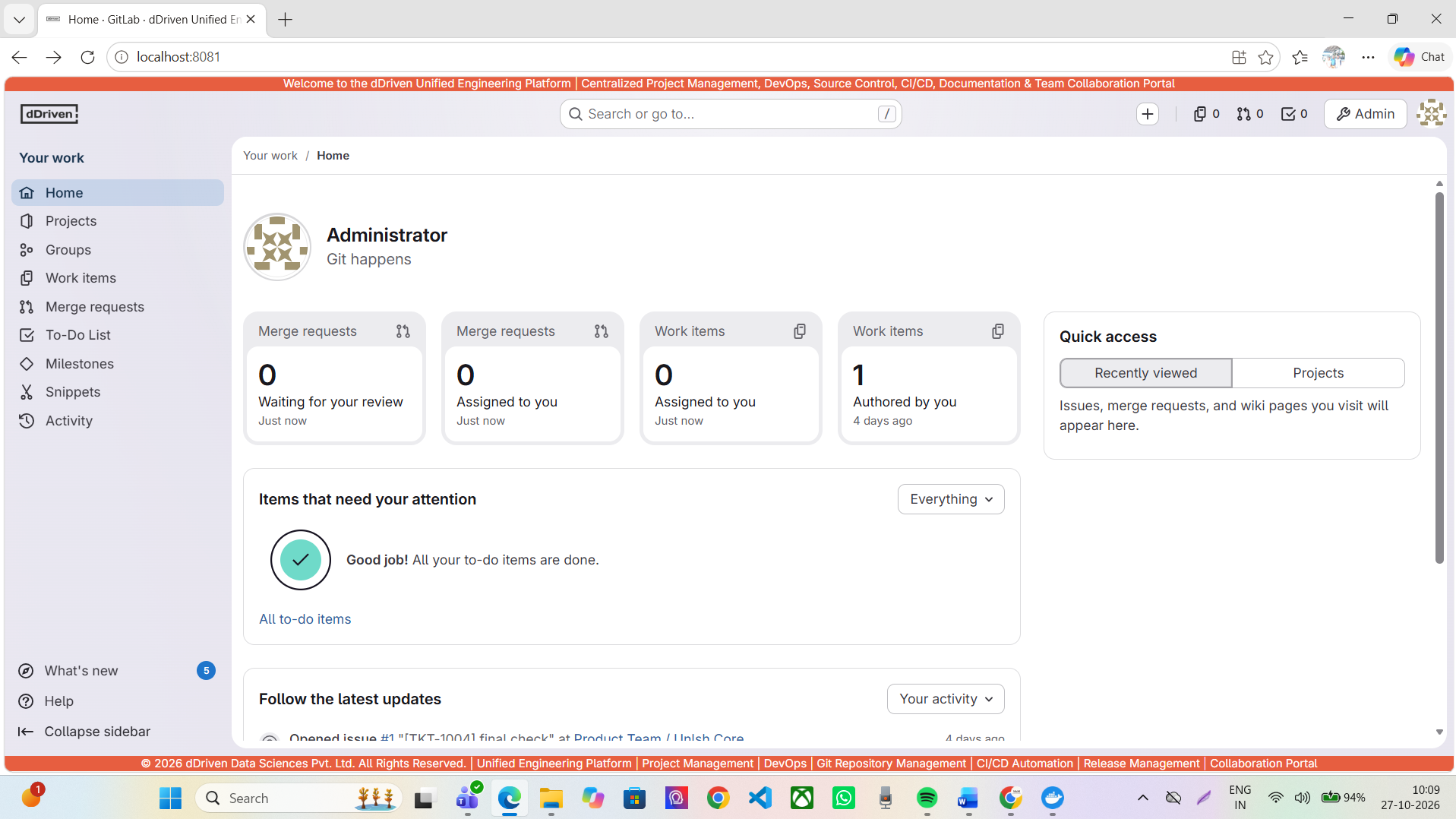
Figure: GitLab Home dashboard with work summaries and quick links. Screenshot captured 27 October 2026; internal use only.
Common access problems
| Symptom | Suggested check |
|---|---|
| Wrong sign-in page | Verify company-approved hostname and HTTPS certificate |
| Authentication rejected | Confirm user exists, is active and follows the internal reset procedure |
| Projects missing | Check direct/inherited group/project membership |
| Privileged controls absent | Confirm the requested operation is part of your assigned role; do not request global admin by default |